How to Edit a Mockup in Zeoob: Tap-to-Edit and the Studio
Zeoob edits by tapping the live preview, not filling in a form. How to edit any mockup in place and use the full-screen Studio on your phone.
On this page
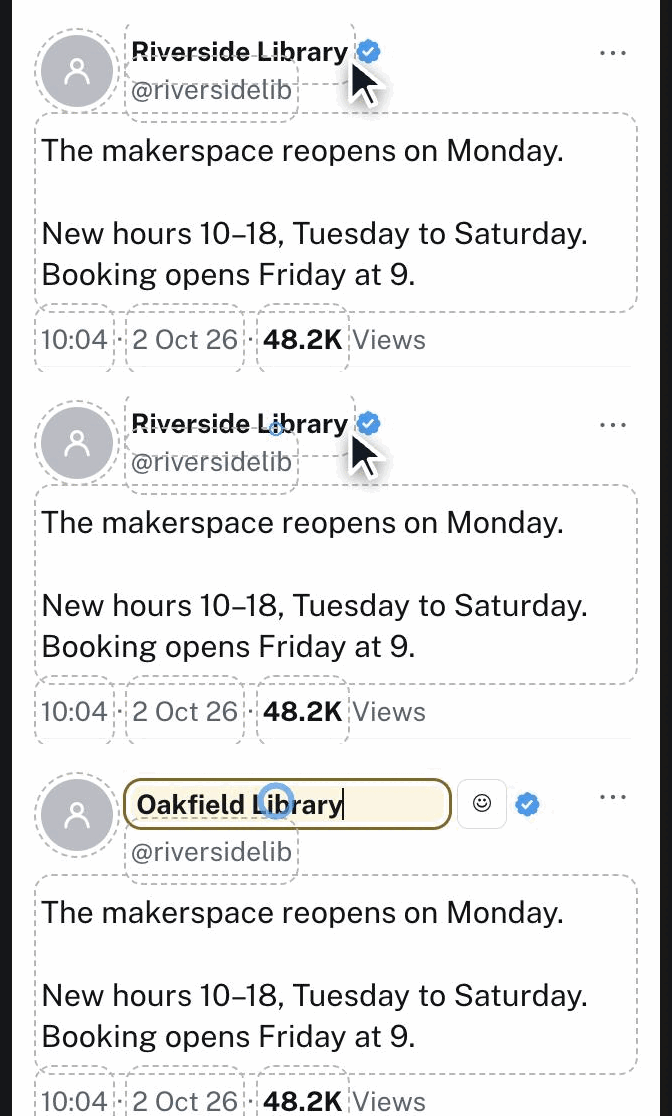
Most “fake post” tools hand you a long form and hope for the best. Zeoob doesn’t. You tap a part of the live preview — the name, the text, the likes — and change it right there, watching it update as you type.
On a phone, the Studio opens the post full-screen so you build it by touch, with the preview always in front of you. This guide walks through both: editing on the preview, the full-screen Studio, the controls panel, and exporting your image.
Two ways to edit
There are two surfaces, and you move between them freely:
- The preview — tap any dashed area on the post to edit it in place: name, handle, caption, avatar, likes, comments, the timestamp.
- The controls panel — the form beside or below the preview, for the toggles and fields that aren’t drawn on the card itself: theme, show or hide elements, privacy, poll, community note.
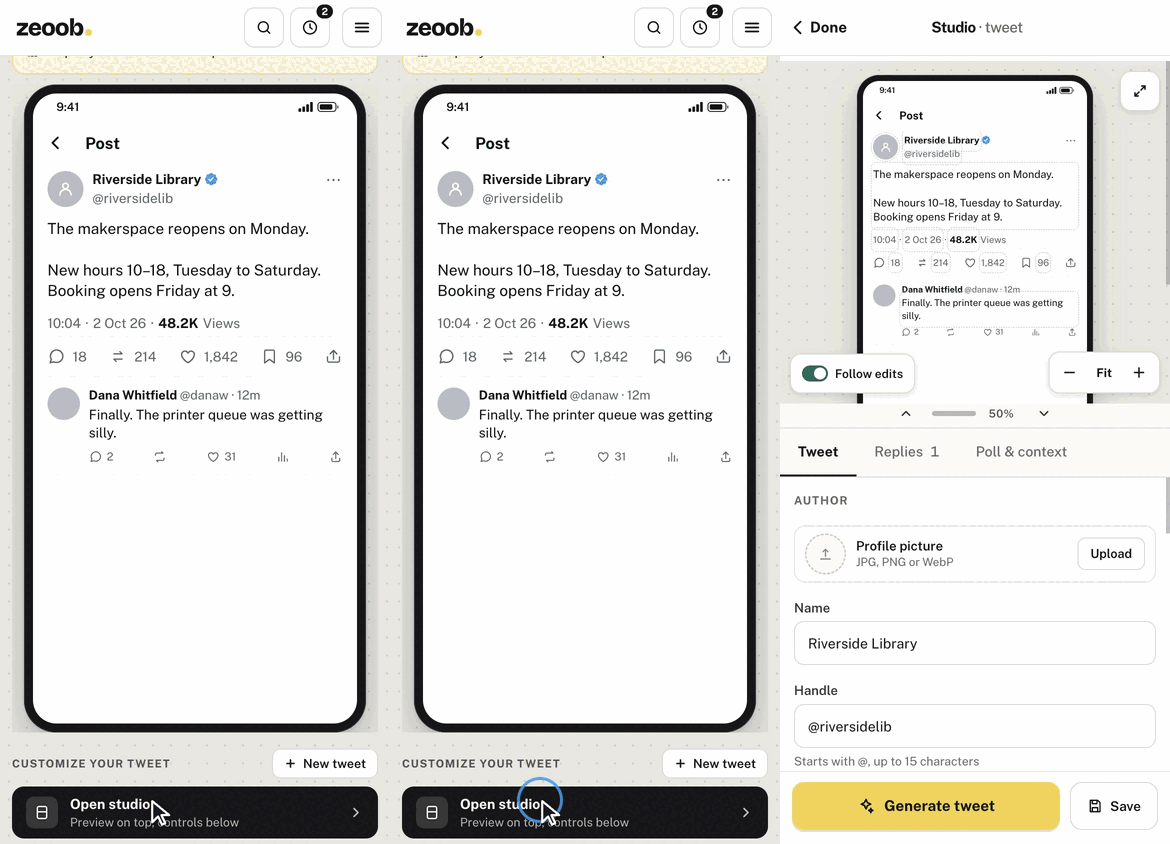
On a phone, tapping Open studio fills the screen with the post and keeps the preview pinned on top while you work.
Editing on the preview
Every dashed, highlighted area on the preview is editable:
- Tap the part you want to change — the name, a line of text, a count. An inline editor opens right on the card.
- Type or paste, then tap away to commit. It updates live.
- Numbers are free text. Likes, views, reposts and comments take anything — type 11, 1,842 or 128K.
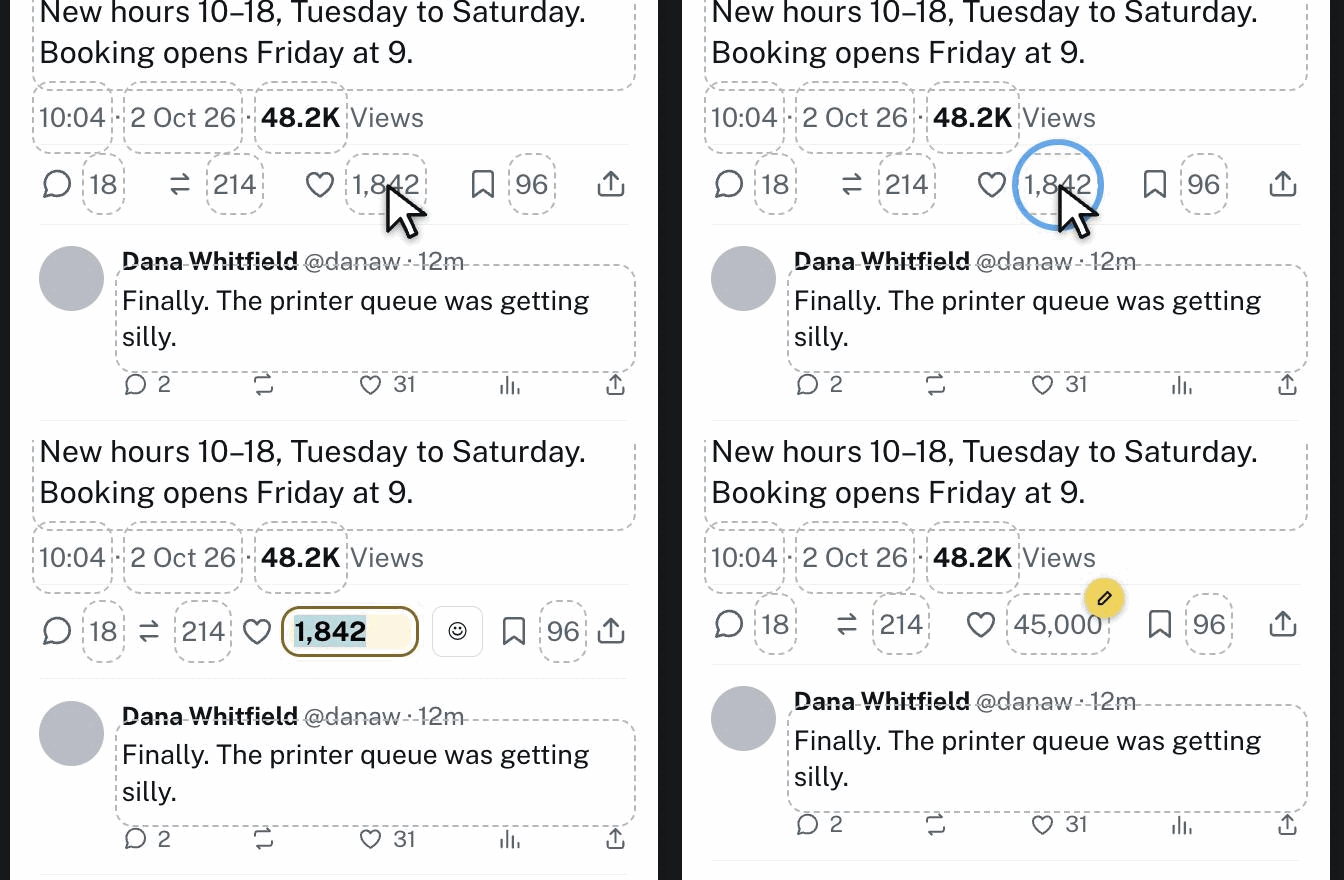
Swap the avatar or post images the same way: tap the photo area and choose a file from your device. Your image never leaves your browser.
The full-screen Studio
Tap Open studio and the post fills the screen. Edit by touch with nothing else competing for space; the live preview stays in view the whole time. Tap Done to return to the page with everything you changed. It’s built for the phone, where most screenshots are made.
The controls panel
Not everything lives on the card. The controls panel is where you reach the rest — theme (light, dim or dark), show or hide rows like the verified tick or location, audience and privacy, polls and the community note.
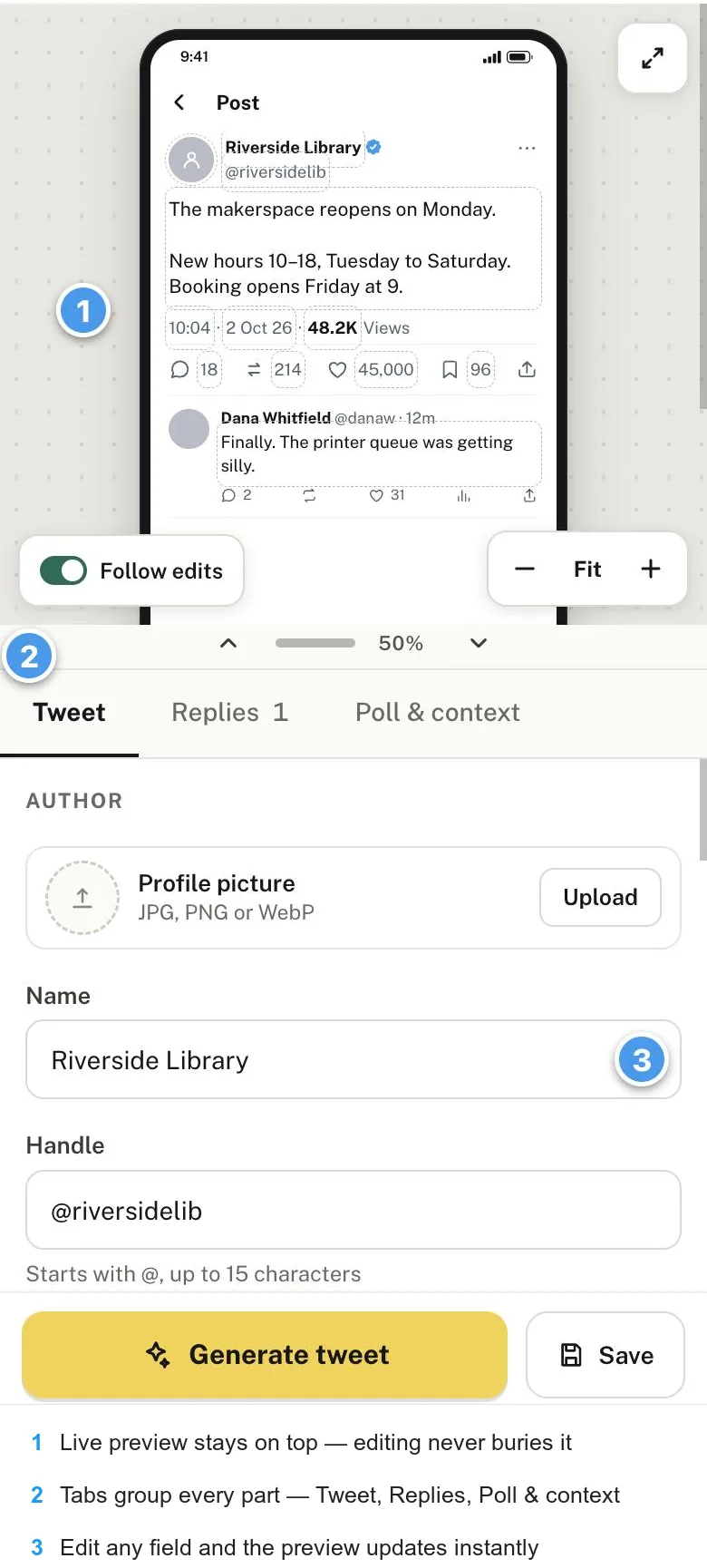
Three things make it quick to work in:
- ① The live preview stays pinned on top, so whatever you change is never off-screen while you reach for a control.
- ② The tabs group every part of the post — Tweet, Replies, Poll & context — so you’re picking a section, not scrolling one endless form.
- ③ Change any field and the preview updates the instant you do — type a name, flip a toggle, and the card redraws.
Give the preview — or the controls — more room
The bar between the two halves shows the split (50% to start). Drag it, or tap the ▲ / ▼ chevrons beside it, to hand more of the screen to the preview or to the controls — whichever you’re working in. To make the post itself bigger, zoom the preview with the − / Fit / + control (or pinch).
Follow edits
Once you’ve zoomed the preview in, the part you’re changing can sit out of frame. Leave Follow edits on and the preview comes to meet you: tap the name and it slides up to the name; edit a reply and it slides down to the reply — the thing you’re editing is always in view. Turn it off to hold the preview still and pan it yourself.
Generate and download
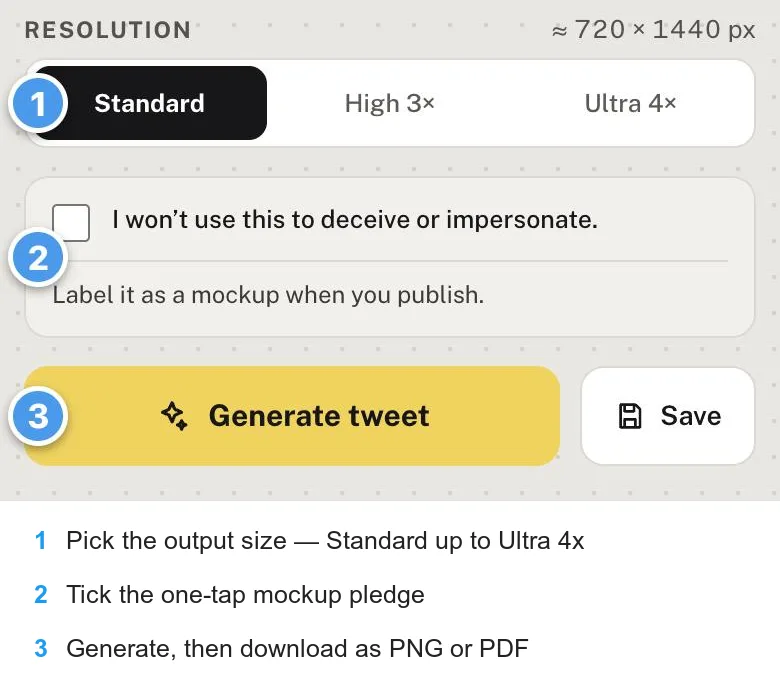
When the mockup looks right, tick the one-tap responsible-use pledge, pick an output size — Standard, High 3× or Ultra 4× — and hit Generate. Download it as a PNG or a PDF, sharp enough for a slide or for print.
Your work auto-saves in your browser as you go, so a refresh won’t lose it. Sign in to sync your saved mockups across devices.
Tips that make it look real
- Edit the small things. The tiny dashed areas — the timestamp, the “via X for iPhone” line, the view count — are what sell a screenshot as real.
- Start from a template, then change everything. It’s faster than a blank post.
- Turn off what a real post wouldn’t have — the verified tick on an ordinary account, a location you don’t need.
- Use the Studio on a phone for the fiddly edits; touch beats a cramped form every time.
It’s the same editor on every tool
Tap-to-edit and the Studio work identically across Zeoob. Learn it once and it’s the same on the Instagram post, fake tweet, WhatsApp chat, Facebook post, TikTok post and Snapchat generators.
FAQ
Does it work on mobile?
Yes — it’s built for it. The full-screen Studio is designed for the phone, where most screenshots are made.
Is it free?
Yes. There’s no sign-up to make or download a mockup, and your uploaded photos never leave your device.
Where is my work saved?
It auto-saves in your browser as you edit. Sign in to sync your saved mockups across devices.
Can I undo a change?
Yes — re-tap the area and set it back, or tap another template to start over. Nothing is committed until you download.
A note on responsible use: Zeoob makes clearly-labelled examples — for teaching, design and mockups — not real posts. Label every image as a mockup where you publish it, and never use one to deceive or impersonate.