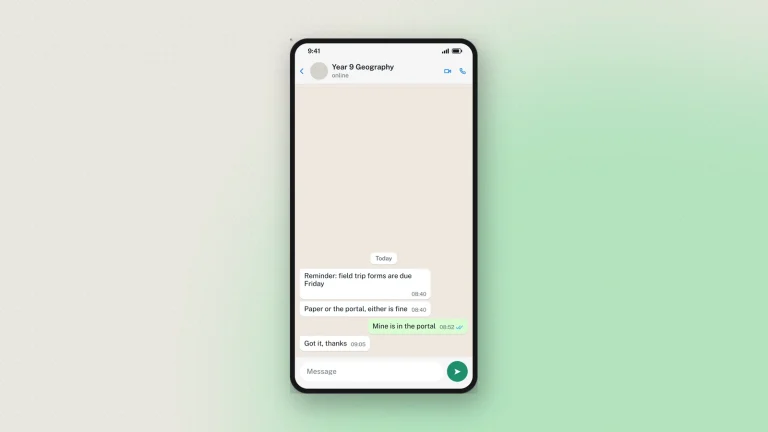
What is a fake WhatsApp chat generator?
A fake WhatsApp chat generator draws a WhatsApp conversation as a picture. You write both sides, set the contact name and photo, choose single, double or blue read ticks, add photos, voice notes and call entries, and switch between the iPhone and Android layouts and light or dark. The result is an image of a chat screen — a WhatsApp mockup. Nothing is sent and no phone number or WhatsApp account is involved.
The two layouts matter more than they sound: WhatsApp on iOS and WhatsApp on Android are visibly different apps, and a mockup that shows the wrong one is the first thing anyone familiar with the platform will notice. A WhatsApp chat simulator is most often wanted for teaching — showing a class what a scam message or a chain forward looks like — and for documentation and training decks, where using a real conversation would mean publishing someone's messages.
Features of the fake WhatsApp chat generator
- iPhone and Android layouts. Two visibly different apps, drawn correctly rather than approximated.
- Read ticks. Single, double and blue, set per message.
- Photos, voice notes and call entries, with their own lengths and timings.
- Both sides of the conversation, with contact name, photo and a group if you need one.
- Up to 50 items in a thread, counting every row you add — messages, photos, voice notes, call entries and date dividers each take one slot.
- Light and dark mode, plus the wallpaper behind the thread.
- HD download as PNG or PDF, with nothing sent and no phone number involved.
How to make a fake WhatsApp chat
The fake WhatsApp chat generator runs in your browser, for iPhone and Android, with no app to install and no account to make. Everything you set is drawn on a live preview of the phone as you go, so you are never guessing what the WhatsApp chat mockup will look like: the screen in the preview is the image you download. A first chat takes a few minutes; once you know where the controls are, under one.
1. Start from a WhatsApp chat template, or a blank chat
The strip above the studio holds seven starting points: Blank, Class group, Customer support, Delivery update, Family, Scam warning and Event invite. Each loads a complete conversation with its own contact, phone layout and settings, written to show one thing. The Scam warning template, for instance, carries the tells of a real scam message on purpose: an unknown number, a family claim, urgency and a new account to pay into. Pick one and change anything, or begin blank and write your own. The strip folds away once you have chosen, and a template can be tried on work already in progress.
2. Write the conversation in the Messages tab
The Messages tab lists the thread as cards, newest at the bottom, in the order the app shows them. Every card has the same top row: who is speaking, Them or Me; the time; a button that inserts a date divider above it; and a bin that removes it. Below that, the type decides what the card holds.
- Text. The message, up to 1,000 characters, and a reaction to hang off the corner of the bubble: a heart, thumbs up, laughing, surprised, crying or folded hands, or none.
- Photo. A JPG, PNG or WebP of your own, with an optional caption. The picture keeps its own shape at the bubble's width, and a very tall one is held at portrait and cropped, as WhatsApp does. With no caption, the time sits on the picture itself. The file stays in your browser.
- Voice note. A waveform with a length you type, such as 0:42, and the sender's picture with the microphone badge on it: the contact's profile picture on theirs, "Your picture" from Chat settings on yours.
- Call. Voice or video, answered or missed, and how long it lasted when it was answered. A missed call from the contact reads "Tap to call back"; one of yours that went unanswered says "No answer".
- Date divider. The pill in the thread that marks a gap between days: Today, Yesterday, or a date.
On your own messages a Ticks row sets the read receipt: Sent for one grey tick, Delivered for two, Read for the blue ticks. The bar under the list adds a message, a photo, a voice note, a call or a date divider, and a thread holds up to 50 items, every row counting as one.
3. Set the contact, the phone and the theme in Chat settings
The Chat settings tab has two groups. Contact is the person on the other end: their profile picture, the picture shown on your own voice notes, the contact name, and the status line under it, which can be online, typing… or a last-seen time. A Verified badge switch adds the tick beside the name, in Meta's blue or the green a business account carries. Look is the phone itself. iPhone or Android changes the bubble shape, the header, the message bar and the tick colour, not just a label. The Android call buttons can be the video and call pair or the newer single call button with a menu. Light and dark each use WhatsApp's own wallpaper and bubble colours, and you can upload a wallpaper of your own. Three switches show or hide the phone and contact bar at the top, the message bar at the bottom, and the round scroll-down button above it.
4. Edit the fake WhatsApp chat on the preview itself
The preview is live, and most of it is editable in place. Click any dashed area, whether the contact name, the status line, a message, a caption, a date divider or the profile photo, and type. The card for that message is highlighted in the list, so the two stay in step. The expand button beside the preview opens it full screen for checking the whole phone at once, and the thread scrolls like the real app, opening on the newest message.
5. On a phone, open the studio
On a small screen the page reads top to bottom, so the studio puts the preview and the controls in one view, the chat on top and its cards below. Tap Open studio under the preview. Drag the divider to give either half more room, zoom the phone in or out or fit it to the pane, and leave Follow edits on so the preview jumps to whatever you are editing, a message, the name or the status line. Generate chat and Save are docked at the bottom, and Done returns you to the page with everything kept.
6. Save the chat, or start a new one
Auto-save keeps the chat in your browser as you work, and the line beside the tabs says when it was last saved. Save stores a named copy under Saved work in the site header, so you can keep several WhatsApp mockups and come back to any of them. New chat clears the thread and every setting back to how the page starts; with auto-save on, the chat you were working on stays in Saved work.
7. Download the WhatsApp chat mockup as a PNG or PDF
Choose a resolution, Standard, High 3× or Ultra 4× of the phone's own size, with the pixel size shown beside the choice. Tick the responsible-use box and press Generate chat. The finished image downloads as a PNG, or as a PDF if it needs to sit on a page. Every download carries a faint "Not an original screenshot" watermark and a hidden origin mark, and the conversation is never sent to WhatsApp or to anyone in it.
How to use the fake WhatsApp chat generator for schools
WhatsApp is where the chain forwards and the family scams land, and it is almost impossible to teach from a real screenshot without publishing someone's messages.
- Chain forwards. Build the "forwarded many times" message and work through why that label exists at all.
- Scam awareness. The wrong-number opener, the parcel-delivery link, the relative in trouble — all three recreate in minutes.
- iOS or Android. Pick the layout your students actually use; the wrong one is the first thing they will notice and the credibility goes with it.
- Read receipts and pressure. Blue ticks with no reply is a social situation worth naming out loud.
- Online classes. Export at 3× so the chat holds up shared or printed.
Label it as a mockup wherever it goes.
Chat design tips
What separates a WhatsApp mockup that teaches from one that argues with itself.
- Match the ticks to the story. One grey tick is sent, two grey is delivered, two blue is read. A thread where the other person has clearly read a message and not replied is a different lesson from one where the message never arrived.
- Keep the clock moving forwards. It is the most common mistake in a hand-made mockup: a reply timestamped before the message it answers.
- Use a date divider for a gap. Two messages three days apart with no divider look like a fast conversation, which changes how the exchange reads.
- Pick the right platform for the audience. If your class is mostly on Android, an iPhone mockup is a small distraction in every screenshot.
- Keep messages short. Real chat messages are short. A paragraph in a bubble is the clearest sign something was written for a slide.
- Mind what fits. The preview is one phone screen and a long conversation runs off the top, exactly as a real screenshot would. Build the part you want to show.
Every chat download carries a faint "Not an original screenshot" watermark, repeated so a crop keeps at least one copy, plus a hidden origin mark anyone can check against the original file with the verification tool.
WhatsApp chat examples
What people build with this WhatsApp chat mockup, and why. Zeoob is a social media simulator: nothing you write is sent to anybody, and the conversation exists only as an image.
- Online-safety lessons. A grooming or pressure exchange shown safely, with no real child's messages involved, so a class can name the tactics.
- Scam awareness. The delivery-fee text, the "hi mum" message from a new number, the fake bank warning — recreated so people recognise them before they arrive.
- Customer-support training. A worked example of a business reply, used to show tone and timing to new staff.
- Marketing, app design and pitches. A placeholder conversation inside a mockup or a slide, at the right resolution, without using anyone's real chat.
- Documentation. A screenshot in a help article that will not break when the conversation it came from is deleted.
- Film, theatre and fiction. On-screen messages for a production, where a real screenshot would leak a real number.
For other platforms there is the Instagram DM generator, the Messenger chat generator and the iPhone text message generator.
FAQ
Is the fake WhatsApp chat generator free?
Yes, with no sign-up. Every feature, including HD downloads, works as a guest.
Does it do iOS and Android?
Both, and they are drawn differently: bubble shape, header layout, tick colour and the message bar all follow the platform you choose.
Can I set blue read ticks?
Yes. Each message is individually sent, delivered or read, so you can show a message that was read and one that never arrived in the same thread.
Can I add photos and voice notes?
Yes, along with calls and date dividers. A voice note takes its own duration.
Is there a dark mode?
Yes, with WhatsApp's own dark wallpaper and bubble colours.
How many messages can a chat have?
Up to 50 items, and every row in the thread counts as one — messages, photos, voice notes, call entries and date dividers each take a slot, not just the text bubbles. The preview is one phone screen and scrolls through the thread, opening on the newest message; the download is the whole conversation, however long it runs.
Why is there a watermark on my download?
Chat mockups are the easiest to mistake for real screenshots, so every chat download carries a faint "Not an original screenshot" line. It is deliberate and it cannot be switched off.
Is my chat uploaded anywhere?
You edit it in your browser and nothing is sent while you work. Downloading sends the finished image to us once, to be watermarked and signed, and we keep a record of it. Nothing is ever sent to WhatsApp. See the privacy policy.
Disclaimer
The conversations made here were never sent, and no phone number is involved. WhatsApp screenshots are forwarded more than any other kind and are almost never checked, which makes mislabelling one genuinely harmful. Zeoob is an independent education tool, not affiliated with or endorsed by any platform it imitates. Use the images for teaching, training, design, documentation and clearly labelled parody — never to deceive or impersonate. Every download carries a hidden origin mark that the verification tool reads back, and responsible use sets out where the line sits.